
Shortcodes and Markdown: Rich Content Without Heavy Code
Page builders are the single biggest source of front-end bloat in the CMS world. Install one, and you're suddenly loading a drag-and-drop editor's CSS and JavaScript on every page, whether or not a visitor ever touches the admin panel. Synaptik CMS takes a lighter path: a small, fixed set of shortcodes and a Markdown option, both parsed server-side, with nothing shipped to the browser that the page doesn't actually need.
Here's what you can do with plain text.
Two ways to write content
Every article, page, and project has a 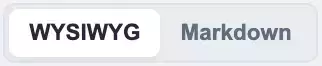 button — either
 html (the default rich-text editor) or markdown (a plain-text CodeMirror editor). You choose per item, not globally, so a documentation-heavy page can use Markdown while a visually designed landing page keeps the WYSIWYG editor. Whichever you pick, the same shortcode pipeline runs afterward — shortcodes work identically in both formats.
Markdown, the parts that matter
The parser covers standard Markdown — headings, bold/italic, links, lists, blockquotes, fenced code blocks, and GFM tables — plus one feature worth knowing about if you write documentation or long-form guides: container directives.
\x00CALLOUT0\x00
This renders as the same styled callout block you'd get from the [callout] shortcode below — it's just faster to type when you're already writing in Markdown. Four types are supported: info/note, warning/caution, tip/success, and danger/error.
Two limitations worth knowing before you commit to a long document: nested lists aren't supported, and table column alignment (:---, ---:) isn't either — every column renders left-aligned. For most blog and documentation content this doesn't matter; for a dense reference table with numeric columns you might want, it's worth testing first.
Shortcodes: the full set
Shortcodes work in both HTML and Markdown content, and each one is only parsed if the CMS finds the matching tag string in your content — meaning a page with no shortcodes at all pays zero parsing cost beyond a handful of strpos() checks.
[toc] — Generates a table of contents from every <h2> and <h3> in the piece. Headings get automatic anchor IDs, so this works whether you wrote the headings in Markdown or HTML.
[button url="/contact" label="Get in touch" style="primary"] — A styled call-to-action button. style accepts primary, secondary, or outline.
[callout type="warning"]Your text here[/callout] — The same styled block as the Markdown ::: syntax, for when you're writing in the HTML editor instead.
[quote author="Name"]A quotable line[/quote] — A styled blockquote with attribution, useful for testimonials or pull quotes inside long-form content.
[gallery id="1"] — Renders an inline gallery in grid, masonry, justified, or carousel layout, with lightbox support built in. No lightbox plugin, no extra script tags unless a gallery shortcode is actually present on the page.
[recent_articles limit="3" category="news"] and [recent_projects limit="3"] — Auto-populated grids of your latest content, optionally filtered by category or tag. Useful for a "related reading" block inside an article without hand-picking links that go stale.
[articles_by_tag tag="tutorials" limit="5"] — Same idea, filtered specifically by tag.
[contact_form] — Drops in the full contact form: CSRF protection, a honeypot field, rate limiting, and optional hCaptcha, all wired up automatically. This is the one shortcode that injects its own stylesheet (contact.css), and only on pages where it's actually used.
Why this beats a page-builder plugin
Every shortcode above resolves to plain HTML at render time — there's no client-side framework re-hydrating a block editor's output, no JSON blob describing "blocks" that needs its own parser. The gallery lightbox and search overlay are the only pieces of the front-end that ship JavaScript at all, and both are conditional: getGalleryScripts() only outputs the layout-specific script for the gallery layout actually used on the current page, and search is a single main.js file already cached with a far-future Cache-Control header.
The tradeoff is real: you don't get a live drag-and-drop preview, and adding a genuinely new content pattern means writing a small PHP parser rather than clicking together existing blocks. For a blog or a documentation site — content that's mostly text with the occasional gallery, callout, or CTA — that tradeoff is the right one. You write [callout type="tip"], not fight with a block editor's DOM.
A quick example
Here's what a typical documentation-style article might look like in Markdown, combining both systems:
# Setting Up Your First Project

[toc]

## Requirements

\x00CALLOUT1\x00


Once your server meets the requirements, follow these steps...

## Related reading

[recent_articles limit="3" category="tutorials"]

Questions? [button url="/contact" label="Get in touch" style="primary"]
That's a table of contents, a styled callout, an auto-populated "related articles" block, and a call-to-action button — all from plain text, all rendered server-side, none of it requiring a plugin.
Learn more about the content editor