
Cleaning Up Image Accessibility with the Alt-Text Assistant
Why alt text matters
Alt text isn't just an SEO checkbox. It's what screen readers announce to visually impaired visitors, it's what shows up when an image fails to load, and it's one of the signals search engines use to understand what an image depicts. A site full of img tags with empty alt="" attributes is a site that's actively hostile to a chunk of its audience — and quietly invisible to image search.
The problem in practice: alt text and captions live on individual images, buried inside galleries, buried inside posts. On a site with a few dozen articles and a handful of project galleries, there's no realistic way to audit that by clicking through every editor one by one.
That's what the Alt-Text Assistant is for.
What it actually does
The Assistant scans every gallery image across all three content types — articles, pages, and projects — and pulls them into a single grid. For each image it shows:
- A thumbnail
- Which post it belongs to and which gallery
- An editable alt text field (250 characters, with a live counter)
- An editable caption field (500 characters, optional)
- A direct link back to that post's editor
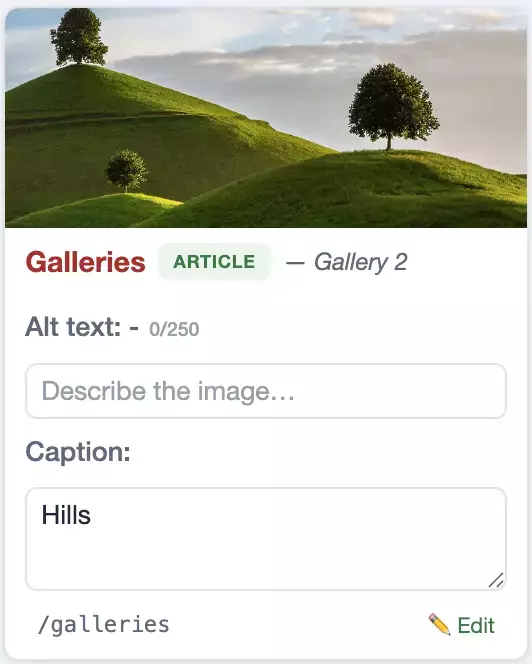
No image is hidden away in a post you forgot existed. Everything is in one place.
Filtering by what's missing
Across the top, five tabs split the full image set:
- All images — every gallery image, no filter
- Incomplete — missing alt text or caption
- No alt text — the field that actually matters for accessibility
- No caption — captions are optional, but easy to track separately
- Complete — both fields filled in

Each tab shows a live count, so you get an immediate sense of scale: "212 images, 34 missing alt text" tells you exactly how much work is left before you even start.
Images missing alt text get a visual flag on the card itself, so they stand out in the grid even before you check the counter.
Editing without leaving the page
This is the part that saves the most time: every field is editable directly in the grid. Type in the alt text field, and after a short pause (or as soon as you click away), it saves automatically via a background request — no save button, no page reload, no jumping back into the post editor for a one-line fix.
The moment a field saves successfully, you get a quick confirmation, the thumbnail's alt attribute updates live in the browser, and the "missing alt" flag on the card disappears if the field is no longer empty. If a save fails — bad connection, server hiccup — you get an error indicator instead, so nothing is lost silently.
In short: open the Assistant, work through the "No alt text" tab, type, tab to the next field, repeat. No clicking into ten different posts to fix ten images.
A note on captions
Alt text and captions serve different purposes, and the Assistant treats them differently on purpose. Alt text is the accessibility-critical field — it's what gets flagged as "missing" and what drives the red indicator on a card. Captions are optional context displayed underneath an image in some gallery layouts; they're tracked for completeness, but a missing caption never flags a card as incomplete in the same way.
If you don't use captions in your gallery layout, you can safely ignore that field entirely and just work through alt text.
Where to find it
The Alt-Text Assistant lives in the admin sidebar's Tools section. Run through it after creating a gallery on a post, and periodically afterward — it's the fastest way to confirm nothing slipped through with an empty alt="".