
Image Gallery Deep Dive
Showcase Your Visual Content
The Synaptik CMS gallery system transforms your content with beautiful, responsive image galleries.
Adding Gallery Images
Every content type in Synaptik CMS includes a gallery section.
At the bottom of the editor view, click 'New Gallery'. Click 'Add images' at the bottom to open the file browser, then select one or multiple images, and they're instantly added.

You can give your gallery a custom name, which will make it easier to differentiate if you have several galleries in a single post.
Once you've added your images to you gallery, you need to insert the shortcode referencing the gallery ID into your post. Either click 'copy' then paste the gallery shortcode wherever you want in your post, or click 'insert shortcode' to insert the gallery at the position of your cursor.
Gallery Layout Options
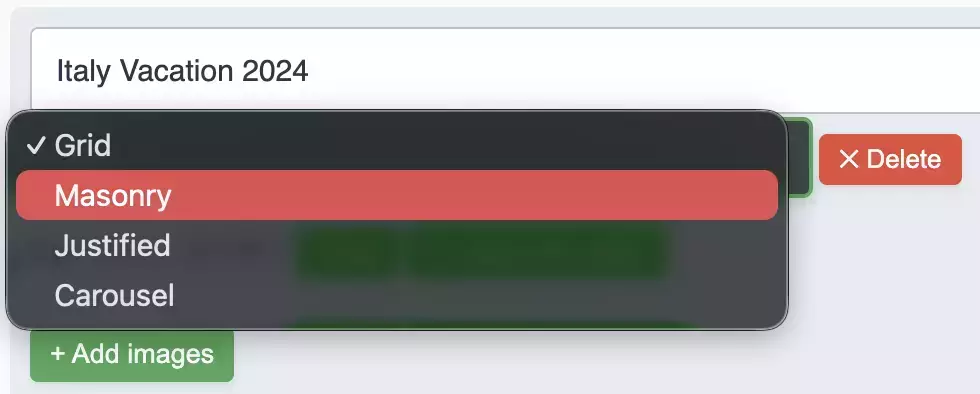
Synaptik CMS offers 4 default layouts for your image galleries, so make sure to select the layout you want in the dropdown of the gallery section. You have a choice between Grid, Masonry, Justified or Carousel layouts.
Drag-and-Drop Reordering
You can arrange your gallery images exactly how you want them. Simply drag images to reorder and publish – your changes are reflected immediately.
Captions and Alt Text
Each gallery image has fields for captions (displayed to visitors) and alt text (for accessibility and SEO). Make sure to at least put a short description of your images in the alt-text fields to ensure better accessibility. Furthermore, search engines seem to like a website that follows these rules.

Performance Optimization
Gallery images are automatically optimized using the same settings as the File Manager. Thumbnails are generated for fast loading.